Astute Beta ID Not Verified? Fix the “Account ID Is Not Verified” Error
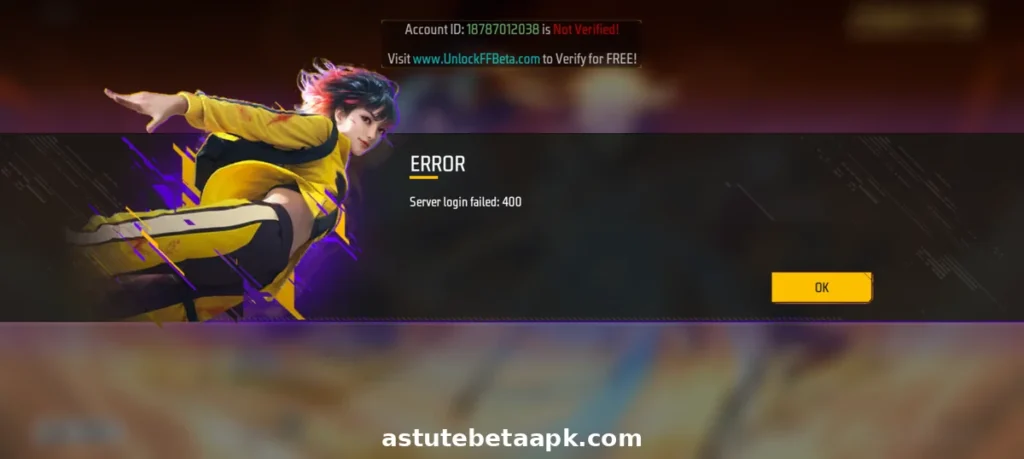
You opened the Astute Beta Server app, logged in as Guest, and instead of the game you got one line on your screen: “Account ID Is Not Verified.” You did every unlock step on the website, so this error feels unfair. If you are facing the astute beta id not verified error, you are not alone.
This is the most common problem beta players face after unlocking, and most players fix it in a few minutes. This guide explains why it happens in plain words and gives you the exact method that worked in our own test, plus every other fix worth trying, in order.
What “Account ID Is Not Verified” Means
Astute Beta Server is a beta testing app for Garena Free Fire and Free Fire MAX. It runs on a separate beta environment, away from your main Free Fire account, and it gives you early access to new weapons, characters, maps and OB updates before the official release. When you log in, the app checks your ID against the verification system run by the operators.
If the two do not match at that moment, the app stops you with the astute beta id not verified error. The error does not mean your phone is broken or your main Garena account is in trouble. It only means the beta system has not accepted this ID yet.
Why This Error Appears
Five causes cover almost every case of the astute beta id not verified error.
Find your cause below and apply its fix.
How to Fix the Astute Beta ID Not Verified Error
Fix 1: Enter the Correct ID, Exactly as Shown in the App
The most common cause is a wrong ID, so never type it from memory. Open the Astute Beta Server app, find your ID on the login screen, copy it exactly, and paste it on the unlock page.
Check both ends for an extra space, and check every digit twice. One extra space or a single wrong digit is enough to fail verification, even when everything else is correct.
Fix 2: After a Reinstall, Always Verify the New ID
If you reinstalled the app or cleared its data, your old ID no longer exists. The app creates a brand new ID on a fresh install, and verifying the old ID will never work again. So always verify the newest ID shown in the app right now.
One important detail: force closing the app does not change your ID, so a simple restart keeps the same ID. Only a reinstall or a data clear creates a new one, and that is the point where most players get stuck verifying an ID that is already dead.
Fix 3: Verify With a VPN Turned On
This is the method we tested ourselves for the astute beta id not verified error, and it is the first thing we recommend trying. Turn on a VPN on your phone before you start, then open the Astute Beta Server app and log in as Guest. Select your region, such as Pakistan, India or Singapore.
If the error appears, open the unlock website and enter your ID exactly as shown in the app. Press Continue on every step, and press Skip on the ads.
If extra ad pages open, close them and return to the original unlock page, then continue. In our test, the whole process finished in about one minute, the game opened, and we logged in successfully.
Fix 4: Update to the Latest Version
An old build can also trigger this error, because the beta server follows the current OB cycle and older builds stop matching it. That is why the login can fail even when your ID itself is correct.
Download the latest version of the app and install it, then log in again with your current ID. This step alone fixes the astute beta id not verified error when the real problem is an outdated build.
Fix 5: Clear Cache Only, Then Wait and Retry
If the error stays, close the app fully and clear only its cache from your phone settings. Do not clear its data, because clearing data creates a new ID and you would have to verify again from the start.
After clearing the cache, wait 10 to 15 minutes and try logging in again. This gap gives the verification system time to sync, and it solves the astute beta id not verified error cases where the system was simply slow rather than broken.
When the Problem Is on the Operators’ Side
Sometimes the issue is not on your phone at all. Verification runs on the operators’ own system, and when their server has a problem, no fix on your side can help. In that case, wait a few hours and try again, or message the operators on their Discord server with your ID and the exact error text.
Keep your message short: your ID, your region, and the words “Account ID Is Not Verified.” That is all they need to check your case.
Stay Safe While Fixing This
Never give your password or OTP to any website, because verification only ever needs your ID. Enter your ID only on the Unlock FF Beta page, and ignore other sites that promise instant verification. Always log in as Guest, so your main Free Fire account, your rank, your skins and your diamonds stay completely untouched no matter what happens on the beta server.
Frequently Asked Questions
Conclusion
The astute beta id not verified error looks scary, but it is usually a small mismatch, not a broken account. In most cases, the fix is simple. Verify the exact ID shown in the app and use the VPN method from Fix 3.
Always log in as Guest and never share your password or OTP with any site. Once your ID is verified, you can enjoy the beta server and test the new OB55 content before everyone else.
Start with Fix 3 for the astute beta id not verified error, because it is the method that worked in our test, then work down the list. For other install problems, read our App Not Installed error fix guide.